scale() - Media Method
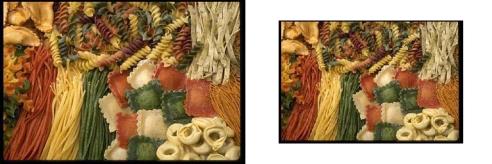
The scale() method scales the image to the specified size. This function fully supports the CMYK colorspace.
Syntax
scale(
[Alg @ <"Fast", "Smooth", "Outline", "Best", “OS”>]
[Constrain @ <true, false>]
[Xs @ <pixels>, <percentage + "%">]
[Ys @ <pixels>, <percentage + "%">]
[X1 @ <pixels>]
[Y1 @ <pixels>]
[X2 @ <pixels>]
[Y2 @ <pixels>]
[PreserveBackground @ <true, false>]
[PreserveBackgroundCutoff @ <value 0..100>]
[PadColor @ <color in hexadecimal or rgb>]
[PadIndex @ <value 0..16777215>]
[Transparency @ <value 0..255>]
[TransparentCutoff <-1, 0..255>]
);
Parameters
Alg - Specifies the algorithm that will be used for scaling. This parameter supports five different algorithm modes:
» Fast - This is the default algorithm.
» Smooth - This is similar to the Fast algorithm, but produces a smoother result for scaling upward.
» Outline - This algorithm is designed for black and white images only.
» Best - The effect of this algorithm is most apparent when scaling upward -- it uses a spline algorithm, giving superior results; however, it is slower than both the Fast and Smooth algorithms.
» OS - This mode uses the operating system scaling to provide a fast, high-quality scale. It only works on RGB and RGBA Media rasters. Any other raster type will cause it to quietly use the Best mode instead. It will also fall back to Best if the image uses more that 512MB of memory, due to an OS limitation.
Note: On Windows, the OS scaling mode sets the color of the pixels in RGBA images to black anywhere that the alpha for that pixel is completely transparent. This is different than the existing scale modes, where the color channels are left untouched. If this is not appropriate for your application of the scaled images, use the Smooth or Best scaling modes for RGBA rasters instead.
Constrain - Specifies that the ratio between xs and ys is maintained relative to the original image. If Xs and Ys values are specified and constrain is set to true, the image size will be padded to preserve the aspect ratio of the source. If the padColor parameter is not set, then the pad color is determined by the backcolor.
Xs and Ys - Specify the size of the generated image, either as an absolute (in pixels), or as a percentage of the selection in the original. Use X1, Y1, X2, and Y2 to specify the selected area. If no area is selected, the percentage is based on the original image size.
Note: Putting a percentage sign after the number signifies a percentage. Where either Xs or Ys is not specified, the original dimension is assumed.
X1 and Y1 - Represent the upper left corner of the area to be scaled. The default is the original image’s upper left corner.
X2 and Y2 - Represent the lower right corner of the area to be scaled. The default is the original image’s lower right corner.
PreserveBackground - When scaling an image that contains an object surrounded by a solid background color, setting this parameter to true avoids anti-aliasing the edge of the object with the background. Anti-aliasing is a method of eliminating jagged edges by blending pixel colors with the background. When working with an object on a solid background, however, most users find it preferable to maintain a sharp, clean edge, because the blending can often produce an undesired halo effect.
PreserveBackgroundCutoff - Specifies the threshold for PreserveBackground. The default threshold percentage is 67, which means that the background color will be preserved unless 67% or more of the pixels use the background color.
Padcolor or Padindex - Specifies the color to be used where the new image dimensions extend beyond the current image. If a pad color is not specified, the image’s background color is used by default. For more information about setting an image’s background color, see setColor() - Media Method.
Transparency - Specifies the transparency (255 is opaque and 0 is transparent) of the padded area’s alpha channel. This parameter is useful when the cropped image is used in a composite() (see page 1).
Note: If the cropped image is not 32-bit before cropping, the transparency information is not used on the next composite() function.
TransparentCutoff - Specifies a value that controls the selection of the transparent pixel when scaling images with color palette. If the scaled alpha channel value is less than or equal to the transparentCutoff value, the transparent pixel is selected. A value of -1 (default) ignores the scaled alpha value and performs the normal reverse color lookup.
Example
var image = new Media();
image.load(name @ "pasta.tga");
image.scale(xs @ "75%", constrain @ true);
image.save(type @ "jpeg");
On-Line Documentation