composite() - Media Method
The composite() method composites the specified foreground (source) image onto the current (background) image. The image specified by source must be loaded separately. The background and source images can be any bit-depth. Transparency is available only for 16-bit, 32-bit, 40-bit (CMYK-A) images with the alpha channel of the source image being used to determine transparency levels.
Note: This function is “selection aware”—if a selection is made, the system applies the function based on the current selection. For more information about making selections, see selection() - Media Method.
This function also frequently uses Media object components, such as getHeight() , getWidth(), and others.
Syntax
composite(
[Source @ <user-defined Media object name>]
[Name @ <"filename", "virtualfilesystem:/filename">]
[Onto @ <true, false>]
[Opacity @ <value 0..255>]
[Unlock @ <color in hexadecimal or rgb>]
[Color @ <color in hexadecimal or rgb>]
[Index @ <value 0..16777215>]
[Saturation @ <value 0..255>]
[PreserveAlpha @ <true, false>]
[IgnoreAlpha @ <true, false>]
[X @ <pixel>]
[Y @ <pixel>]
[HandleX @ <"left", "center", "right">]
[HandleY @ <"top", "middle", "bottom">]
[Tile @ <true, false>]
[Blend @ <"blend-type">]
);
Important: Before you can composite an image, you must load() it.
Parameters
Source - specifies the image using its user-defined Media object name. This parameter does not require quotes.
Name - specifies the image by its name and extension (such as airplane.jpg). Use this parameter if you are compositing with an image that you have not yet loaded.
If Source or Name is not specified, MediaRich will perform a color-fill when you also specify the Color parameter. For example, if you composite without naming a source, and specify the color green (0x009900), the green will appear composited over the entire background or onto the area of the background as specified through a selection (as with the following example).
var image = new Media()
var image2 = new Media();
image.load(name @ "car.tga");
image2.load(name @ "mskcar.tga");
image.selection(source @ image2);
image.composite(color @ 0x009900);
image.save(type @ "jpeg");
Onto - when specified, the system composites the source onto the loaded image. This way the current Media acts like the source, and the loaded one acts like the background. The user can construct a source image and then composite it onto another image without having to cache the source.
Note: Trying to composite an RGB image onto a CMYK image or vice versa results in the process stopping at the composite() line with an error.
Opacity - specifies opacity of the source image. The default value is 255 (completely solid).
Note: If the source image already has an alpha channel that renders it less than solid, specifying opacity can only make it less opaque; it cannot override the alpha channel to make it more opaque.
Specifying a color value for Unlock causes the selected foreground (source) image to display only where the specified color value appears in the current (background) image.
Color - colorizes the source image. Any transparency or masking still behaves normally. This allows a source image to be used as a pattern that can be composited in any color, without having to create a new image first. For more information about colorizing an image, see colorize() - Media Method.
If a color palette exists for the source image, you can use the Index parameter to colorize the image (as an alternative to the Color parameter).
Note: You cannot specify values for both the Color and Index parameters.
Saturation - specifies the value used for weighting for the change in saturation for destination pixels. A value of 255 changes the saturation of pixels to the specified color. A value of 128 changes the saturation of a pixel to a mid-value between the pixel’s current color and the specified color.
Note: The Saturation parameter only functions when the Blend parameter is set to colorize.
FixAlpha - if set to true, this is equivalent to applying the fixAlpha() - Media Method command. It may be required with some images to get the expected results.
PreserveAlpha - when set to true, preserves the alpha channel of the target image as the alpha channel of the resulting image. The default is false.
IgnoreTransparency - when set to true, the source is composited onto the target and all transparency information, via alpha channel or other forms of transparency, is ignored. The default is false. (This option was formerly known as IgnoreAlpha, and that name can still be used, but the behavior is as described above, with both alpha channels and all other forms of image transparency ignored.)
X and Y - specify the position of the source image, with the center as anchor point. For example, if “x @ 100, y @ 50" is specified, the center of the source image will be located at pixel (100,50) on the target image. If these parameters are not specified, the center of the source image is located at pixel (0,0).
HandleX and HandleY - specify the attachment point of the source image. The default values are center and middle.
Tile - when set to true, the source image wraps continuously along both the x- and y-axis so that it spans the entire target image. The tiling starts in the location specified by the X and Y and HandleX and HandleY parameters. If not specified, tiling starts from the target image’s center.
Note: If the source image is larger than the target image, setting the Tile parameter to true has no effect, unless the source image is sufficiently offset from the center to allow this effect to display.
Blend - specifies the type of blending used to combine the drawn object with the images. Blend modes are: Normal, Darken, Lighten, Hue, Saturation, Color, Luminosity, Multiply, Screen, Dissolve, Overlay, HardLight, SoftLight, Difference, Exclusion, Dodge, ColorBurn, Under, Colorize (causes only the hue component of the source to be stamped down on the image.), and Prenormal.
This function supports CMYK for the following blend modes: Normal, Darken, Lighten, Screen, Multiply, Dissolve, Overlay, HardLight, SoftLight, Difference, Exclusion, Burn, Dodge, Under, Copy, and PreNormal. The other modes (Hue, Saturation, Color, Luminosity, and Colorize) are not supported for CMYK. You must first convert to RGB using colorCorrect() and then perform the composite. Additionally, composite cannot be performed unless both images are either CMYK or RGB.
Example
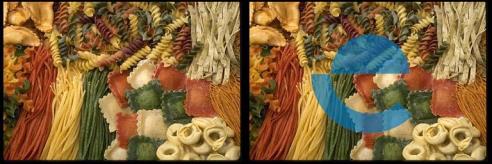
var Target = new Media();
var Source = new Media();
Target.load(name @ "pasta.tga");
Source.load(name @ "logo.tga");
Target.composite(source @ Source, x @ 100, y @ 150);
Target.save(type @ "jpeg");
On-Line Documentation