Viewing and Modifying the Global Properties
You can modify global properties for the server in the Global Properties dialog. These properties include error and dependency handling, as well as cache management.
To modify global properties:
| 1. | Choose Properties > Global Properties. |
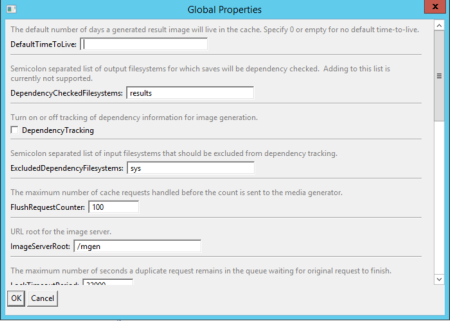
Defining the global properties
| 2. | Confirm or modify the following settings: |
• DefaultTimeToLive: Enter the number of days the server should keep media objects in the cache before removing them. The System Monitor keeps track of Time to Live information, but this information is lost if you restart the System Monitor.
• DependencyCheckedFilesystems: Enter a list (separated by semicolons) of the output locations for which saves will be dependency checked.
• DependencyTracking: Select this box to enable this feature; required for the Check Dependencies function to work. If not enabled, dependency information is not generated. This feature uses a database to keep track of the entries so that there is no limit on the number of files that can be tracked. (Versions previous to 3.8 had Dependency Tracking ON by default. The default in 3.8.x and later is for it to be turned OFF.)
• ExcludedDependencyFilesystems: Enter a list (separated by semicolons) of the input filesystems to exclude from dependency checking. The default is sys.
• FlushRequestCounter: Enter the number of cache requests that must made before the count is sent to the MediaGenerator. The default is 100.
• ImageServerRoot: Enter the root for the image server. The Web server extension uses this property to determine which URLs are processed by MediaRich. MediaRich processes only URLs with paths starting with this root. Default is /mgen.
• LockTimeoutPeriod: Enter the maximum number of seconds a cache entry can be locked. This is the maximum time that duplicate requests will wait in the queue for the original request to finish. This value should not be less than the default.
• LookupFilesystems: Enter the output filesystems (separated by semicolons) for which the file request command is allowed.
• MaximumBatchInactiveTime: Enter the maximum number of seconds a batch can be inactive before it is terminated. This is the maximum time that batches remain open for accepting new jobs. This applies only to applications that use the batch API. In general, this value should not be reduced from the default.
• MaximumExecutionTime: Enter the maximum number of seconds that a MediaScript can run. The default is 32000.
• MediaLoadMaxHeight: Enter the maximum width of the image for TIFF, JPEG, and Photoshop files. If set to 0 (zero), downsizing is disabled and MediaRich will attempt to load at full height resolution. MediaLoadMaxWidth and MediaLoadMaxHeight work independently, and scaling is always proportional. So if, for example, width is specified as 0 and the height is specified as 4000, the image will be reduced proportionally as necessary so that the height is not larger than 4000. The default is 8192. MediaLoadMaxHeight can be overridden by the maxHeight parameter in the load() method.
• MediaLoadMaxWidth: Enter the maximum width of the image for TIFF, JPEG, and Photoshop files. If set to 0 (zero), downsizing is disabled and MediaRich will attempt to load all images at full width resolution. MediaLoadMaxWidth and MediaLoadMaxHeight work independently, and scaling is always proportional. So if, for example, width is specified as 0 and the height is specified as 4000, the image will be reduced proportionally as necessary so that the height is not larger than 4000. The default is 8192. MediaLoadMaxWidth can be overridden by the maxWidth parameter in the load() method.
Important: Disabling this automatic downsizing can result in errors or crashes due to a low-memory situation for large files. It is strongly recommended that you do not disable this feature unless your system has 32 GB of physical RAM.
• ProfileScriptPath: Enter the virtual file system path to the profile script. The default is sys/ProfileScript.ms.
• ReturnHtmlErrors: Tick this box to have MediaRich return a separate HTML file for each failed image generation.
• ScriptErrorLifetime: Enter the number of seconds that an HTML script error file remains in the Script Errors folder. The default is 3600.
• ScriptErrorLogging: Select to enable logging of MediaScript errors. If cleared, no errors will be logged.
• TimeToLiveTracking: Turn time-to-live tracking on or off. The default setting is on (checked).
| 3. | When finished, click OK to save your changes. |
Note: Both the System Monitor service and the MediaGenerator service must be restarted after editing the properties files in order for the changes to take effect.You must also restart all MediaRich servers and Web servers when changing properties.
Modifying properties files in a text editor
The settings you specify in the Local Properties and Global Properties windows in the MediaRich CORE Administration utility are saved as text files in the MediaRich server directory. Modifying local and global settings in these files using a text editor has the same effect as modifying the settings using the MediaRich CORE Administration utility interface.
The text file provides additional advanced options for modifying a server’s properties.
The original property values are stored in the local.properties file, located at MediaRichCore\Properties and in global.properties, located at MediaRichCore\Shared\Properties. The Administration utility saves modifications made to these files in a separate set of files named local.properties_user and global.properties_user respectively. These files are located in the same directories as the original files they modify. This mechanism allows future versions of MediaRich to update the default set of property values without overwriting any changes made by the local administrator.
Note: MediaRich Server supports Unicode. If a properties file contains any Unicode characters, it must be saved as Unicode.
Moving properties files to a new installation
If you transfer *.properties_user files to a new MediaRich installation, you must restart SystemMonitor to force it to load the new files. This can be done either using the Services control panel or by rebooting the computer.
Configuring the execution threads
The ExecutionThreadPriorities property is a local property that specifies the number and priorities of execution threads that will be generated to handle requests. This setting determines how many jobs the server will process simultaneously.
A job can be given a priority number between 0 and 7 when it is submitted, with 0 being the highest priority, and 7 the lowest. The 0 priority is reserved for administrative jobs that are not expected to require a significant amount of processing time. Higher priority jobs are given precedence over lower ones.
Ignoring the allowance for multiple CPU configurations, the ExecutionThreadPriorities property consists of a list of priority numbers separated by commas. An execution thread is generated for each number in this list, and will run with the priority value specified by that number. A thread that runs at a specific priority will only execute jobs that have a priority equal to or higher than that number. A lower number specifies a higher priority.
Equilibrium suggests that the ExecutionThreadPriorities list ALWAYS contain at least one 0 priority thread. This thread can be ignored when determining the appropriate load for a host, since the thread will not process normal jobs, but only lightweight administrative functions. If no 0 priority thread exists, administrative functions such as status page refreshes will hang whenever the server is fully loaded with other kinds of jobs.
The priority assigned to a job is determined by the client that submits the job. The following guidelines are suggested to interpret various priority levels:
Regular Job = Priority 3 - These are dynamic requests, such as from a Web page or other interactive user interface. They have a relatively high priority since they are expected to be executed in real time. MediaRich requests submitted through a Web browser have this priority.
Batch Job = Priority 5 - These are jobs that aren’t expected to return immediately. Processing of batches of files, such as jobs submitted by MediaRich HotFolder, are submitted at this priority level.
Large Batch Job = Priority 7 - These are jobs that require a long processing time regardless of what priority they are assigned. They are given a lower priority to allow the creation of threads that will not run these jobs and can be reserved for other job types.
The following examples illustrate these configurations:
ExecutionThreadPriorities=0,5,5,7,7
This is the standard configuration for a two-processor host. It specifies an administrative thread, two threads for running regular and batch jobs, and two threads for running any kind of job. This is a good configuration for a machine that is being used EITHER for processing dynamic requests OR for processing batch jobs. It will allow dynamic requests and most batch jobs to run on all four threads, but will only allow large batch jobs to run on two of the threads, preserving two threads for more lightweight jobs.
ExecutionThreadPriorities=0,3,3,5,5,7
This would be a good configuration for a single server that will be used for both dynamic and batch processing. It will preserve two threads for interactive requests, regardless of how many batch jobs are waiting to be processed. It will provide three additional threads that will take either interactive or batch jobs.
ExecutionThreadPriorities=0,7,7,7
This configuration can be used when the server will be used almost exclusively for large batch jobs such as video processing. In this case, all available threads must be able to process these large jobs... no threads should be reserved for higher priority jobs. Note that higher priority jobs can still be submitted, but must wait in line for any large jobs that were submitted before them to complete.
One other contingency to be aware of is that a single ExecutionThreadPriorities value can specify multiple configurations based on the number of virtual CPUs (cores) present in the system. If a number in square brackets is inserted into the list of priority values, this value is used as a “processor count cutoff.” If the machine on which the server is running does not have at least that many virtual CPUs, the remainder of the list of values is ignored.
MediaRich users should rarely have a reason to specify multiple CPU thread configurations. Since the number of CPUs in a machine is usually expected to remain constant, there is no need to reconfigure this value to support multiple CPU configurations. This feature exists primarily to allow Equilibrium to provide a single initial value for this property that is appropriate for machines with multiple processors.
The following example specifies multiple configurations based on CPU count and is the initial value of this property when MediaRich is installed:
ExecutionThreadPriorities=0,5,5,7,7,[4],5,7,7,[8],5,5,7,7
This configuration specifies that five threads (of priorities 0, 5, 5, 7, and 7) be used on a single or two-processor machine, eight threads be used on a four-processor machine, and that 12 threads be used on an eight-processor machine.
On-Line Documentation